1. Practitioner Profile & Account
Maintain your professional identity and subscription details.
1
Update Credentials
Navigate to your profile settings to update your professional title, bio, association and links.
2
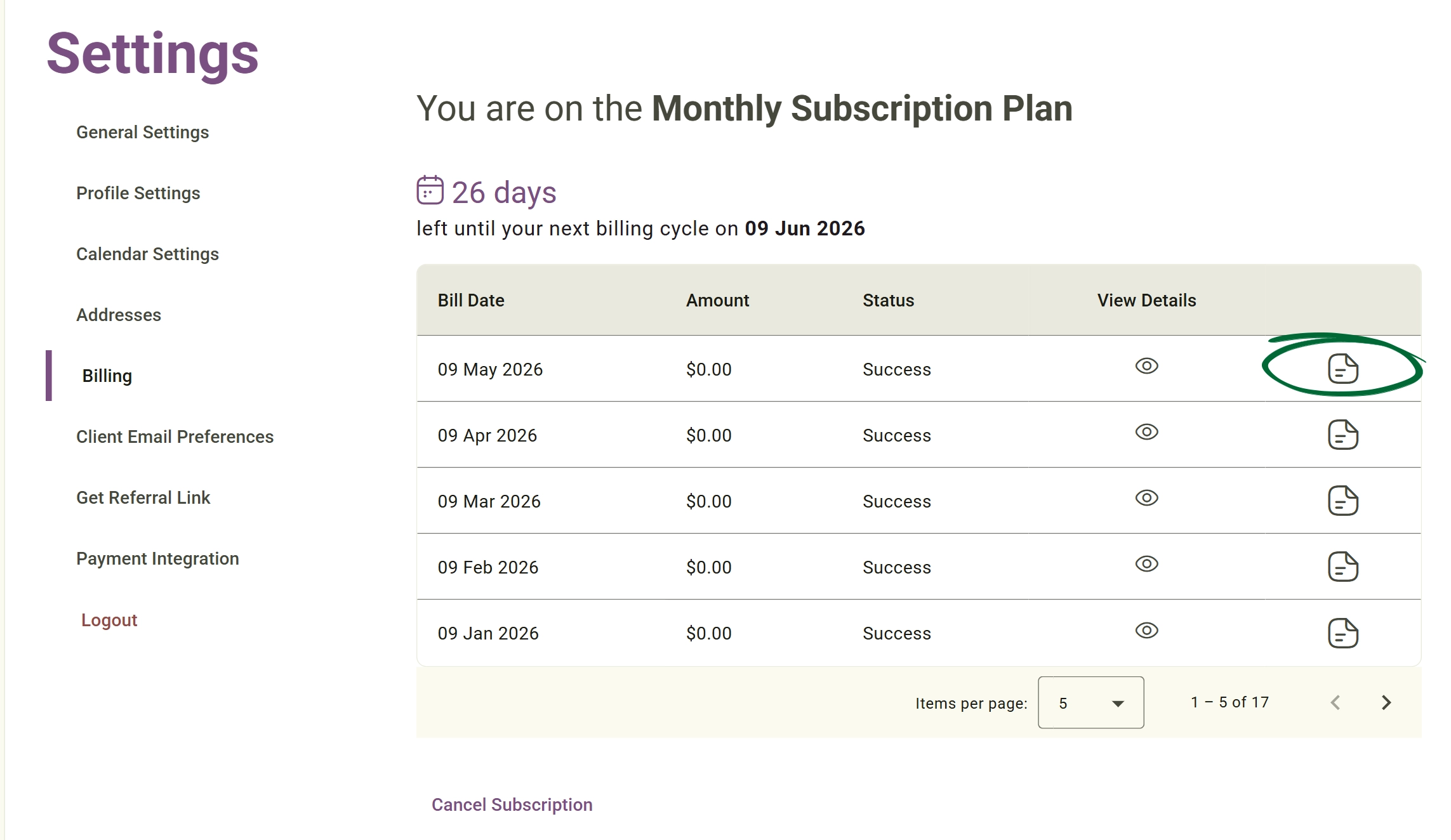
Manage Subscription
Go to the Billing section to view your current plan or update payment methods.
3
Access Invoices
Download historical invoices to keep your business accounts organized.
Tip: Ensure your profile picture is professional, as this is often the first thing clients see in their portal and emails.
2. Preferences & Clinical Models
Customise your AI note models and how you interact with clients.
1
General Settings
Access this tab to define your preferred clinical workflow.
2
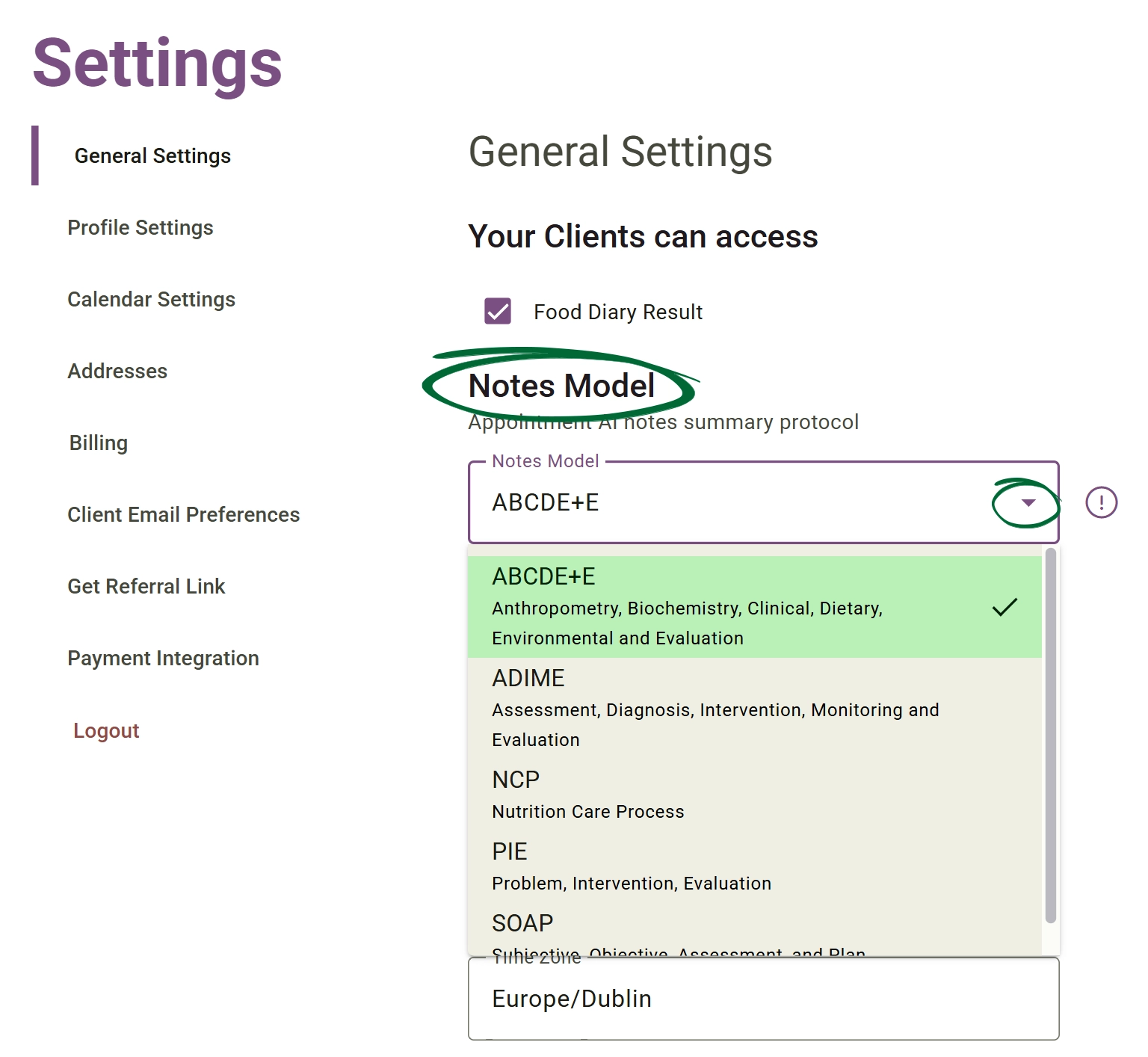
Select Notes Model
Choose your primary framework (e.g., SOAP, ADIME) to align the AI Assistant with your methodology.
3
Communication Preferences
Toggle automated triggers like booking confirmations, form reminders, or marketing emails.
4
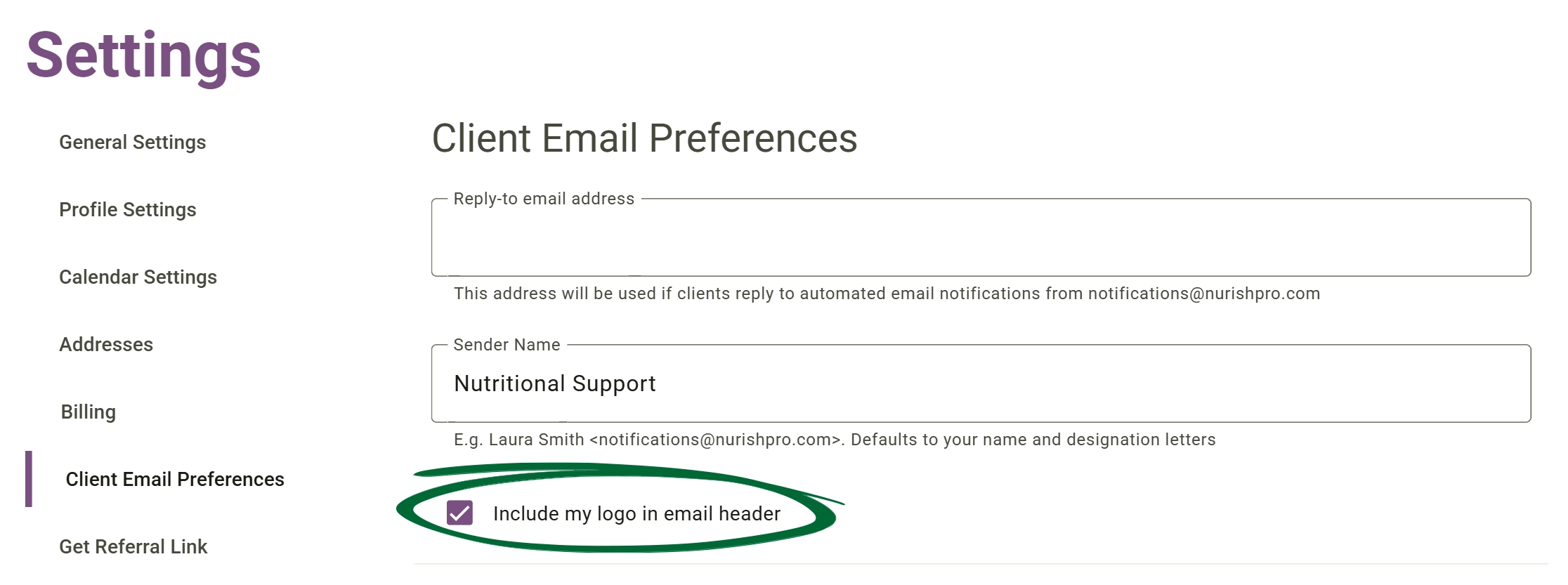
Practice Branding
Set your brand colors and logo to appear on client-facing documents.
Tip: Set your default notes model to your most-used format to save significant time during busy clinic days.
3. External Integrations (Calendars & Payments)
Centralise your business by managing all third-party connections in one place.
1
Calendar Sync
Link or refresh your Google or Outlook accounts to prevent double bookings.
2
Payment Integration
Connect your Stripe account to manage clinical fees and deposits.
3
Manage Permissions
View and update the data access levels for each integrated tool.
4
Refresh Tokens
If a sync fails, use the "Reconnect" tool to re-authorise the connection.
Tip: Check your integration status monthly to ensure your calendar sync is still "Authorised" and active.
Frequently Asked Questions (FAQs)
Can I change my clinical notes model at any time?
Yes. You can update your global default in Settings as often as you like. Note that changing the default will not affect notes you have already saved, only future AI-generated drafts.
Does Nurish Pro store my credit card information?
No. All billing and payment processing is handled through Stripe, a PCI-compliant payment gateway. We never store your full card details on our local servers.
If I disconnect my calendar, will it delete my existing appointments?
No. Disconnecting your external calendar only stops the real-time sync. Your appointments within the Nurish Pro dashboard will remain intact, but new entries from Google/Outlook will no longer appear.
Troubleshooting & Common Issues
Issue: Cannot find the last invoice
Potential Solution: Invoices are generated at the start of your billing cycle. If it's missing, check that your "Billing Email" is correct in your account settings.
Issue: Subscription payment failed
Potential Solution: Navigate to Billing and click "Update Card" to ensure your payment details are current and valid.
Issue: Clients receiving too many emails
Potential Solution: Review your Communication Preferences and untick "Marketing" or "General Reminders" while keeping "Transactional" emails active.
Issue: Calendar sync has stopped
Potential Solution: This usually happens if you change your Google/Outlook password. Click "Disconnect" and then "Reconnect" to refresh the security token.
Issue: Stripe account is "Restricted"
Potential Solution: Stripe occasionally requires an updated business ID. Click "Manage Stripe" to jump to their secure portal and upload any requested documents.
Practice Check
Your Nurish Pro account is now fully configured! If you need technical help with any specific setting, click the Live Chat icon in your dashboard.
Back to DashboardContact Support
Still need a hand?
Email Support: [email protected]